
Why ‘Free’ Apps Ask for Permissions They Never Actually Need
A flashlight app does not need your contacts. A wallpaper app does not need your location. When the download is free, the gap between what a feature needs and what the app requests is where the real price hides.
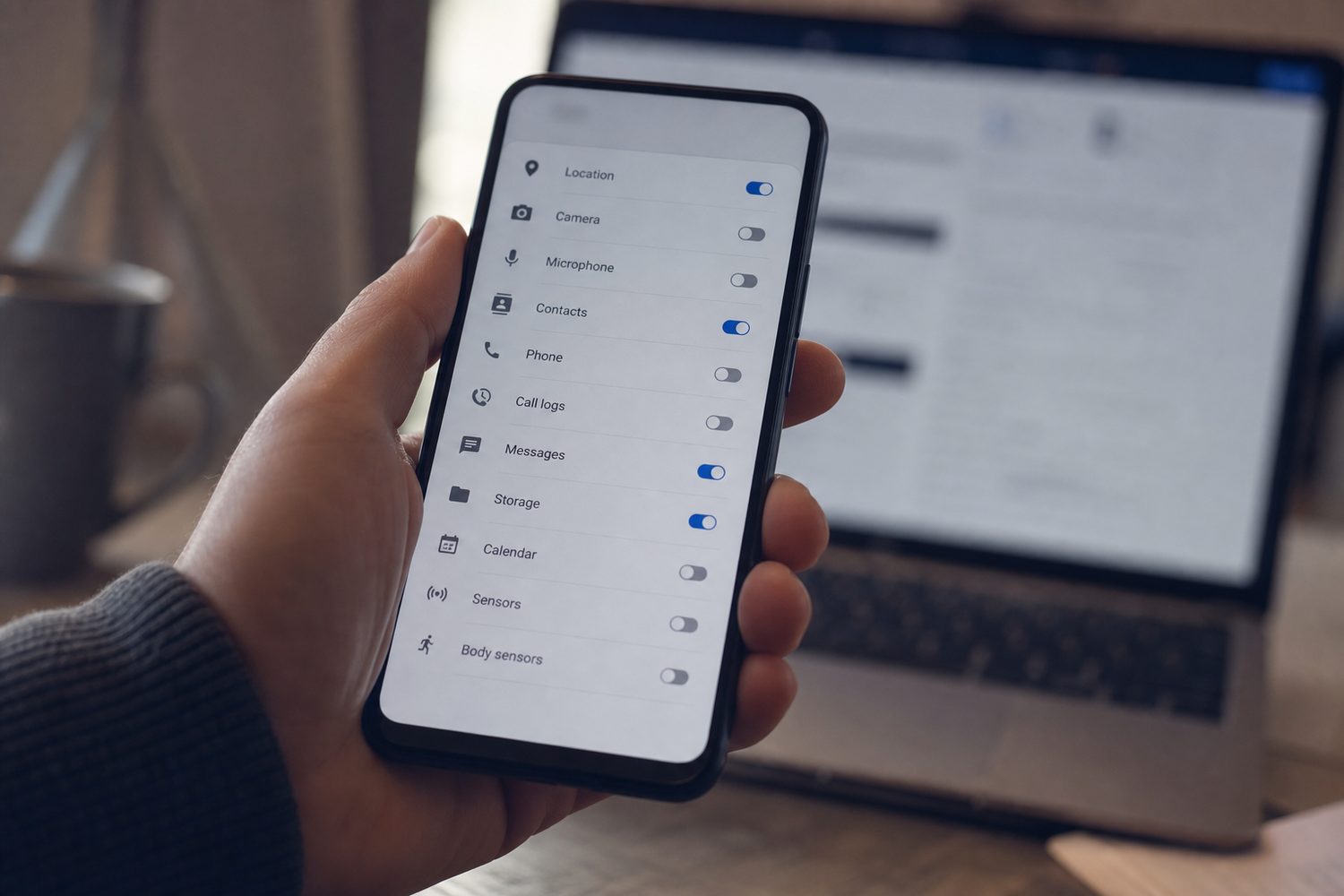
There is an old line that gets repeated so often it has nearly lost its meaning: if you are not paying for the product, you are the product. It is worth slowing down on, because the place that sentence becomes concrete is the permissions prompt. That small pop-up asking for your contacts, your location, your microphone — that is the checkout counter for a free app. You just are not paying in money.
None of this means free apps are scams or that every permission request is sinister. Plenty are completely legitimate. A maps app needs your location. A messaging app needs your contacts. The problem is narrower and more specific: a steady minority of apps ask for far more than their actual features require, and the surplus exists to be collected, packaged and sold.
What a feature needs versus what the app requests
Every permission has a defensible-sounding story. The trick is to test that story against the thing the app actually does for you. A photo editor needs to read photos. That checks out. A photo editor that also wants your precise location and your contact list does not — there is no editing feature that depends on knowing where you are standing or who you know.
This gap is the whole story. When the request is bigger than the function, the difference is rarely an accident. It is a business decision. Data that has nothing to do with the app you opened can still be valuable to someone, and an extra toggle is cheap to ask for and easy to grant by reflex.
If a permission has nothing to do with why you opened the app, treat that as the question, not the answer. The burden is on the app to justify it.
The examples that should make you pause
Some patterns come up so consistently they are worth naming. A simple flashlight app asking for your contacts. A wallpaper app asking for precise, all-the-time location. A basic puzzle game wanting microphone access. A calculator requesting your call logs. In each case the requested data has no plausible link to the feature on screen.
When you see that mismatch, the most useful question is not “is this app dangerous?” It is simpler: what would this app do with that, given what it actually offers me? A flashlight does not call your friends. A wallpaper does not need to know you are at the airport. If you cannot construct an honest reason the feature requires the data, the reason is almost certainly off-screen — in an advertising network or an analytics partner.
The mismatch test
Name the feature you opened the app for. Then name the permission it is requesting. If you cannot draw a straight line between the two in one sentence, deny it and see whether anything actually breaks. Usually nothing does.
Background location and the quiet market behind it
Of all the permissions, background location deserves the most scrutiny, because it is the one with the clearest resale value. There is a difference between an app knowing where you are while you are using it and an app tracking where you are at three in the morning while it sits closed in a folder. The first is a feature. The second is a feed.
Location data is collected by some apps and passed — directly or through software kits bundled into the app — to data brokers, companies whose business is aggregating and selling location histories. A continuous trail of where a device goes can reveal a startling amount: where you live, where you work, who you visit, which clinic or place of worship you attend. Sold in bulk and stitched together, anonymous pings stop being anonymous.
This is why “allow all the time” is the single permission worth being most stubborn about. Very few apps have an honest need for it. Navigation while driving, a fitness tracker recording a run — those make sense. A retailer, a game or a utility almost never does.
How to audit and revoke permissions
The reassuring part is that both major phone systems now put you in control, and revoking a permission almost never breaks the app — it just asks again the next time it genuinely needs that access. Exact menu names shift between versions, so the steps below are deliberately high-level.
On iPhone and iPad: open Settings and go to Privacy & Security. There you can pick a category — Location Services, Contacts, Microphone, Camera, Photos — and see the full list of apps that have asked for it. Tap any app to change its access, and for location you can usually choose “Never,” “Ask Next Time,” or “While Using the App.” You can also scroll to an individual app in Settings to review everything it has been granted in one place.
On Android: open Settings and look for the Permission manager, usually found under Privacy or under Apps. It groups permissions by type, so you can see exactly which apps hold your location, microphone or contacts and switch any of them off. You can also open an individual app's settings and tap Permissions to review its access on its own.
On both systems, the wording matters. “While using the app” means access stops the moment you close it. “Always” or “all the time” does not. When in doubt, choose the narrower option.
Sensible defaults that age well
You do not need to become suspicious of your phone to be sensible about it. A few quiet habits do most of the work.
Deny by default. If a prompt appears and you are not sure why, decline it. The app will ask again when it actually needs the access, and at that point the reason is usually obvious. Grant “while using” rather than “always” whenever the option exists; background access should be the exception you reach for deliberately, not the setting you wave through. And review periodically — once or twice a year, open the permission manager and skim the list. Apps you forgot you installed are exactly the ones quietly holding access they never earned.
A five-minute permissions audit
If you do nothing else after reading this, do this. Open your phone's privacy settings and go to location first. Look at every app set to “always” or “all the time.” For anything that is not a maps or fitness app you actively use, drop it to “while using” or off entirely. Next, open the microphone list and the contacts list and ask the mismatch question of each entry: does this app's main feature actually require this? Turn off the ones that fail. Finally, delete two or three apps you have not opened in months — uninstalling is the most complete revocation there is. Five minutes, once or twice a year, closes most of the gap between what your apps need and what they have been collecting.
Free is a real and useful thing. The point is not to distrust it, but to read the price tag — which, for a free app, is written in permissions rather than dollars.